Connections
WastePro works alongside a few outside services — your accounting system, your maps, and the like. The Connections screen shows each of those services and whether it’s currently linked up. It’s a status board, not a control panel.
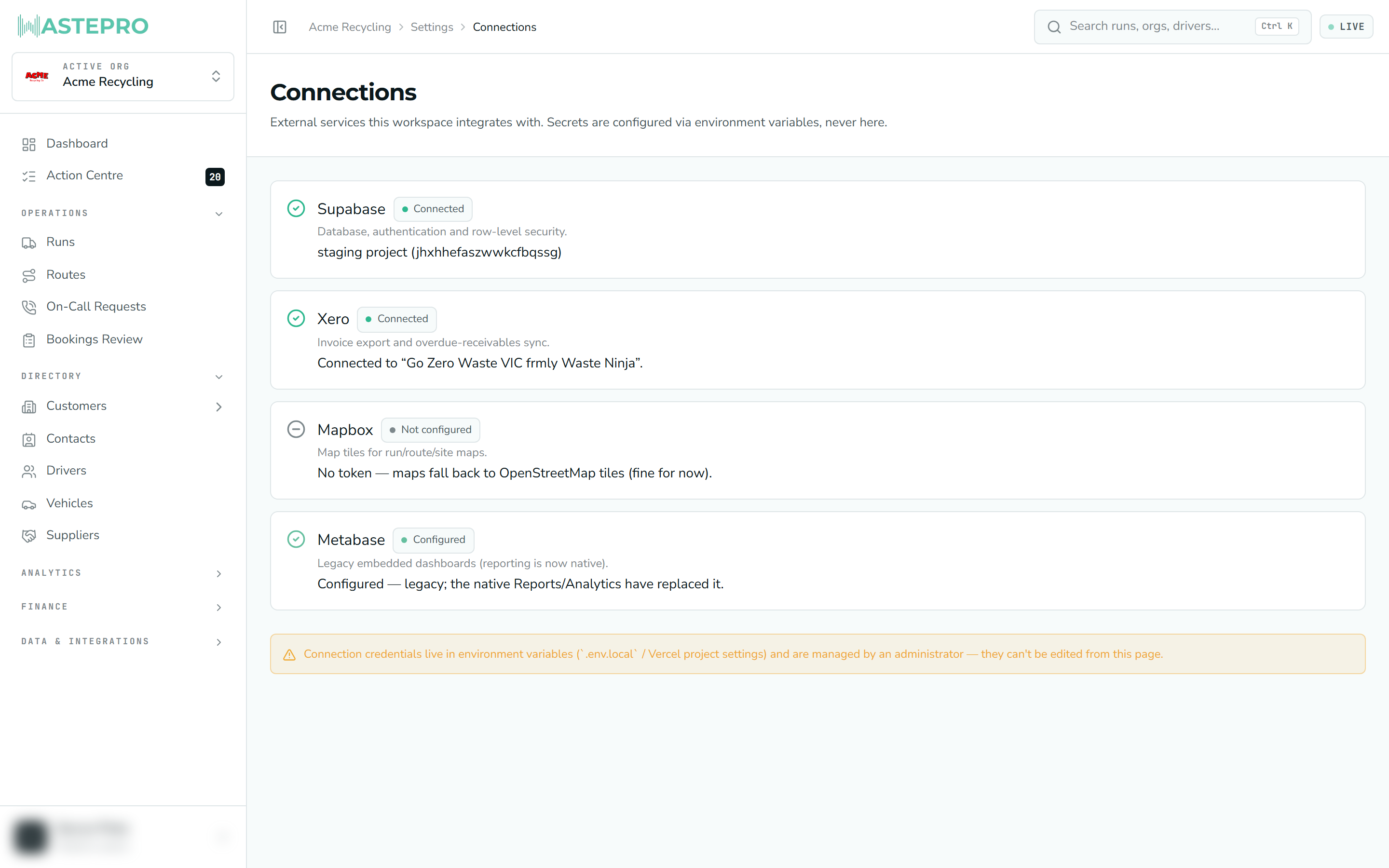
This screen sits under Settings and is restricted: only users with the manage connections permission can open it. If it’s not in your menu, your account doesn’t have that permission.
What you see
Each external service is shown as a card with its name, a short description of what it’s for, a status, and a one-line detail. The status tells you where things stand:
| Status | Meaning |
|---|---|
| Connected | Linked and reachable — WastePro just talked to it successfully. |
| Configured | Set up and ready, but not something WastePro actively pings. |
| Not configured | No connection details in place yet. |
| Error | Set up but WastePro couldn’t reach it — the detail line explains why. |
The services that can appear include:
- Supabase — the database and sign-in behind WastePro. The detail line notes whether you’re pointed at the live or the staging copy of your data.
- Xero — powers the Xero Invoice Export and overdue-receivables sync. When connected, the card confirms which Xero organisation it’s linked to.
- Mapbox — the map tiles used on run, route and site maps. If it isn’t set, WastePro falls back to free OpenStreetMap tiles, which is fine.
- Metabase — older embedded dashboards, kept for reference now that WastePro’s own Reports have replaced them.
The Xero card showing Connected means WastePro can reach Xero. Being able to write to a particular organisation’s Xero — creating draft invoices and bills — is a separate arrangement, which is why an org can have a healthy Xero card and still see Create draft Bills in Xero unavailable on Xero Bill Export. The CSV route works either way.
Connecting and changing details
This page shows connection status; it doesn’t let you type in passwords or keys. Those credentials are held securely in the platform’s configuration and are managed by an administrator (typically your developer), not entered here. That keeps secrets out of the app where nobody can read or accidentally change them.
So when a service shows Connected, WastePro can use it — for example, a connected Xero link is what makes the invoice export line up with the right Xero organisation. If something you expect to be working shows Not configured or Error, that’s the cue to ask your administrator to check the setup.
Next: Users & roles is where you control who can reach admin screens like this one.