Routes
A route is a reusable template of stops — a saved, ordered list of the services you collect on a regular trip, for example “Tuesday front-lift, North”. Where a run is one particular day’s trip, a route is the pattern behind it. You build the route once, then use it to generate runs day after day.
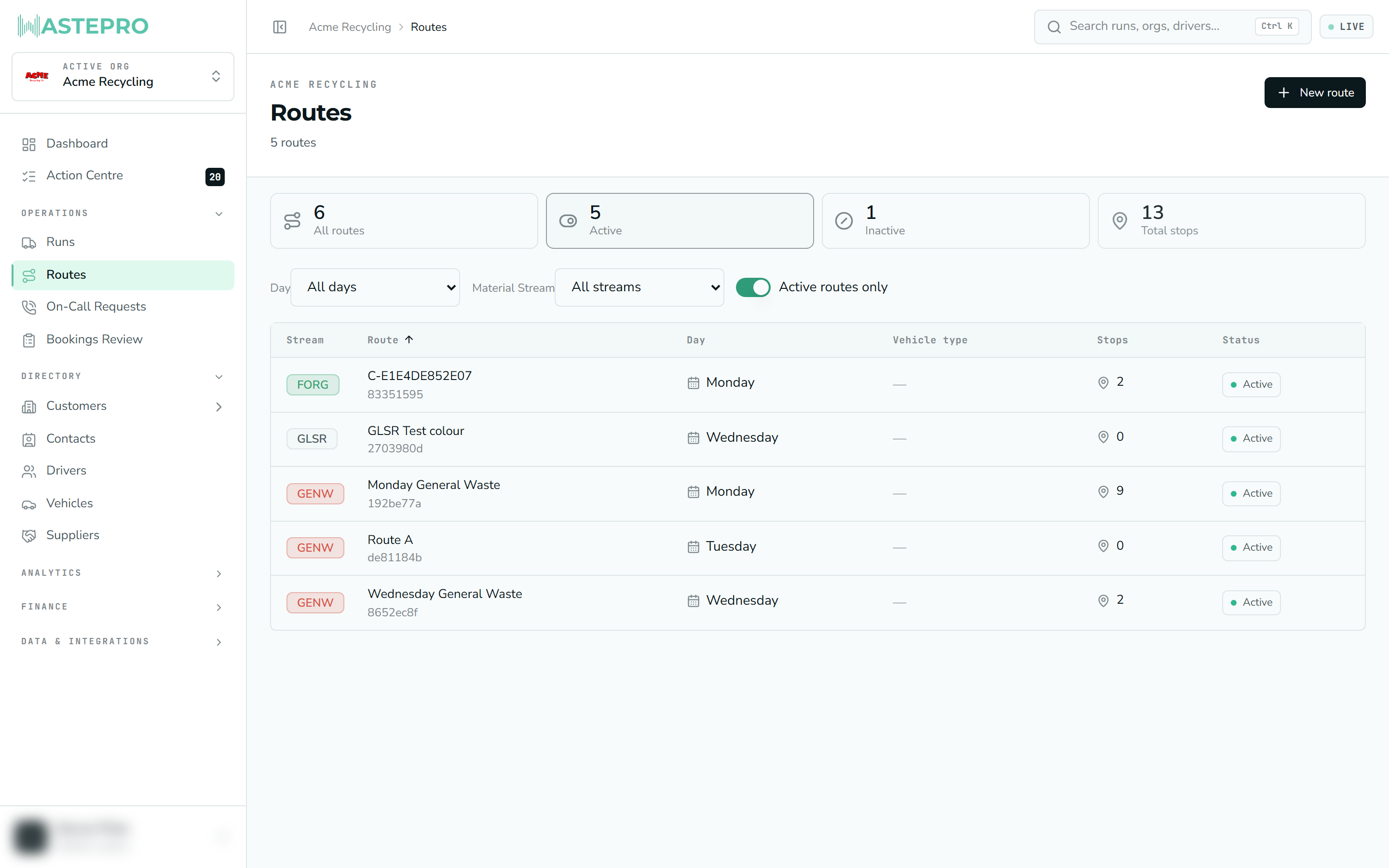
The Routes list
The summary cards at the top count All routes, Active and Inactive routes, plus the Total stops across them. The list opens showing active routes by default; click All routes or Inactive to change what’s shown. Use the toolbar to filter by day of the week or material stream.
Each row shows the route’s material stream, name, collection day, vehicle type and its number of stops, along with an Active or Inactive status. Click a row to open the route.
Creating a route
Add the route
Click New route and give it a name — something that says what it is, like “Tuesday FL — North”. Set the day it runs, its material stream and vehicle type, and leave the status as Active.
Add its services
Open the new route and use Add service to route to attach the services (the recurring collections at each site) that belong on this trip.
Put the stops in order
The order of the services is the order the driver will drive them, so it’s worth getting right — see the next section.
Ordering the stops
On the route, the Services on Route panel lists the stops in sequence. Click Reorder to change the order:
- Drag a stop by its handle, or nudge it with the up/down arrows.
- Click Optimise to have WastePro auto-order the located stops by the shortest sensible path (this needs at least three stops with map locations).
- Click Save order to write the new sequence.
Services whose sites are inactive are hidden from the list, and the panel tells you how many were left out. Each stop links through to its service if you need to check the detail.
How routes become runs
A route doesn’t collect anything by itself — it generates runs, and there are two ways to do that:
- Schedule runs (on the route) generates a run for each due date across a date range you choose, honouring each service’s collection frequency. You pick the crew and start time up front, and WastePro even suggests the driver who usually runs it. Before anything is created you get a preview — which dates, how many stops, and a heads-up about any dates that already have a run so they’re not doubled up.
- Seed stops from route when creating a single run (on the Runs screen) copies the route’s stops onto that one run.
The route keeps a Run history at the bottom of the screen, listing the recent runs generated from it, with their driver, stop count, any futiles, and status — a quick way to see how the route has been performing.
Editing a route’s stop order or services changes the template for future runs. Runs already generated from it aren’t rewritten — change those on the run itself.
Next: see how scheduled work turns into a day’s trip on the Runs screen.