Importing data
Most businesses start with their records already sitting in spreadsheets, and subcontractors send their monthly charges as files too. WastePro has two import tools that bring that data in without re-typing it: a customer import for your own client records, and a subcontractor (3PT) import for the bills your suppliers send you.
These are back-office tools. They live on admin screens and are generally only available to managers and admins — if you don’t see them, your account may not have the right permission.
The shape of every import
Both tools follow the same four moves, so once you’ve done one the other feels familiar:
- Pick or upload a file — a spreadsheet or CSV (the subcontractor tool also reads PDF bills).
- Map and validate — tell WastePro which column is which, and let it check the data.
- Review — look over what will be created, fix anything flagged, on screen.
- Commit — confirm, and the records are created in your account.
Nothing is written to your account until you commit, so you can back out at any point before that.
Importing customers, sites and services
This is how you load your own client records in bulk. You’ll find Bulk import on the Customers screen (it’s also one of the steps on Get set up).
Upload your spreadsheet
Open Bulk import and choose a file (.xlsx or .csv). One row should
describe one site and its service — a customer with several sites has one row per
site. You can download a template to see the columns WastePro expects, but you
don’t have to use it: any column names work, because you map them next. If your
workbook has more than one sheet, you pick which one to read.
Map the columns
On the mapping screen you match each WastePro field to a column from your file. Fields are grouped into Customer, Contact, Site and Service. WastePro guesses where it can, and required fields are marked with a red star — you can’t continue until those are filled.
Review the rows
WastePro shows every row in an editable grid and works out, for each one, whether it’s new, an update to something you already have, or unchanged — shown as small C / S / V badges (customer, site, service). Fix anything it flags directly in the grid, and delete rows you don’t want.
Commit
When it’s clean, commit. WastePro creates the customers, sites, contacts and services, and shows you a count of each. It then quietly adds map pins for the new sites in the background.
Saved layouts: if you import from the same source regularly, you can save your column mapping as a reusable layout and apply it next time — so you only do the matching work once.
Got one full address in a single column? Map it to Billing address and leave the separate address, suburb, state and postcode fields blank — WastePro splits it for you. Leave Site name blank and each site is named automatically from the customer plus its street address.
Importing subcontractor (3PT) bills
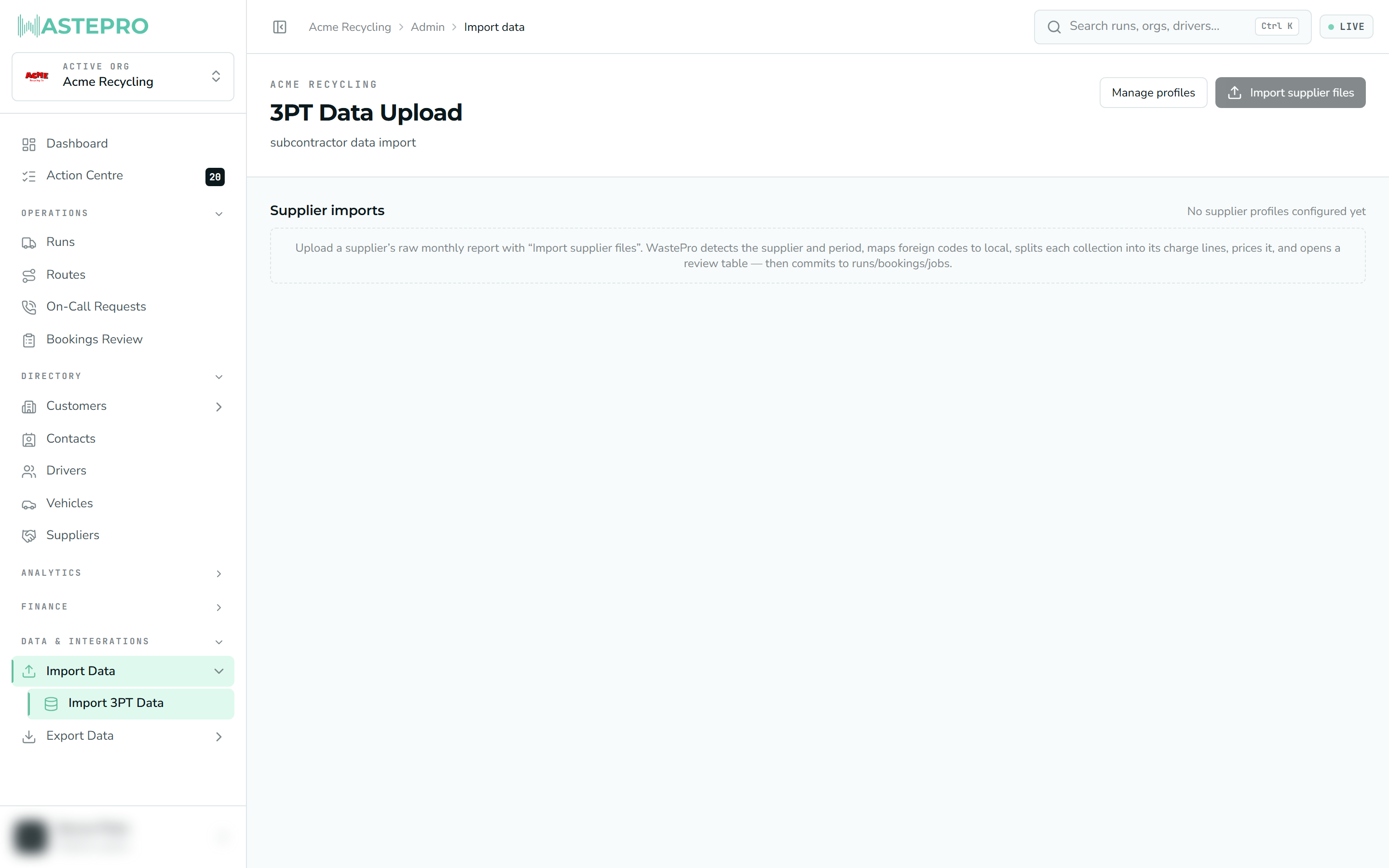
Your subcontractors send monthly reports of the collections they did for you. The Import 3PT Data screen (under Data & Integrations › Import Data) turns those raw files into priced runs, bookings and jobs in WastePro, so subcontracted work is recorded just like your own.
Because every subcontractor’s report looks different, this tool works from a supplier profile — a saved recipe for reading one supplier’s file. You build a profile once by uploading a sample report; after that, uploads from that supplier are read automatically, and you only step in when something new turns up.
The shape of a month is: drop the files in, let WastePro read them into charge lines, resolve anything it couldn’t map, then commit — at which point the work becomes runs, bookings and jobs.
Subcontractor invoices have a section of their own, because there’s more to get right than fits here — the reconciliation checks, the site-matching traps, the three ways to commit, and how to undo each kind of mistake. Start at Subcontractor invoices.
Next: with your data in, Xero Invoice Export is how billable work leaves WastePro for your accounting system, and Xero Bill Export is how your suppliers get paid.