Runs
A run is one day’s trip of collections — the actual work a driver or a subcontractor carries out on a given date. This screen is where you see every run, schedule new ones, and open a run to check how it went.
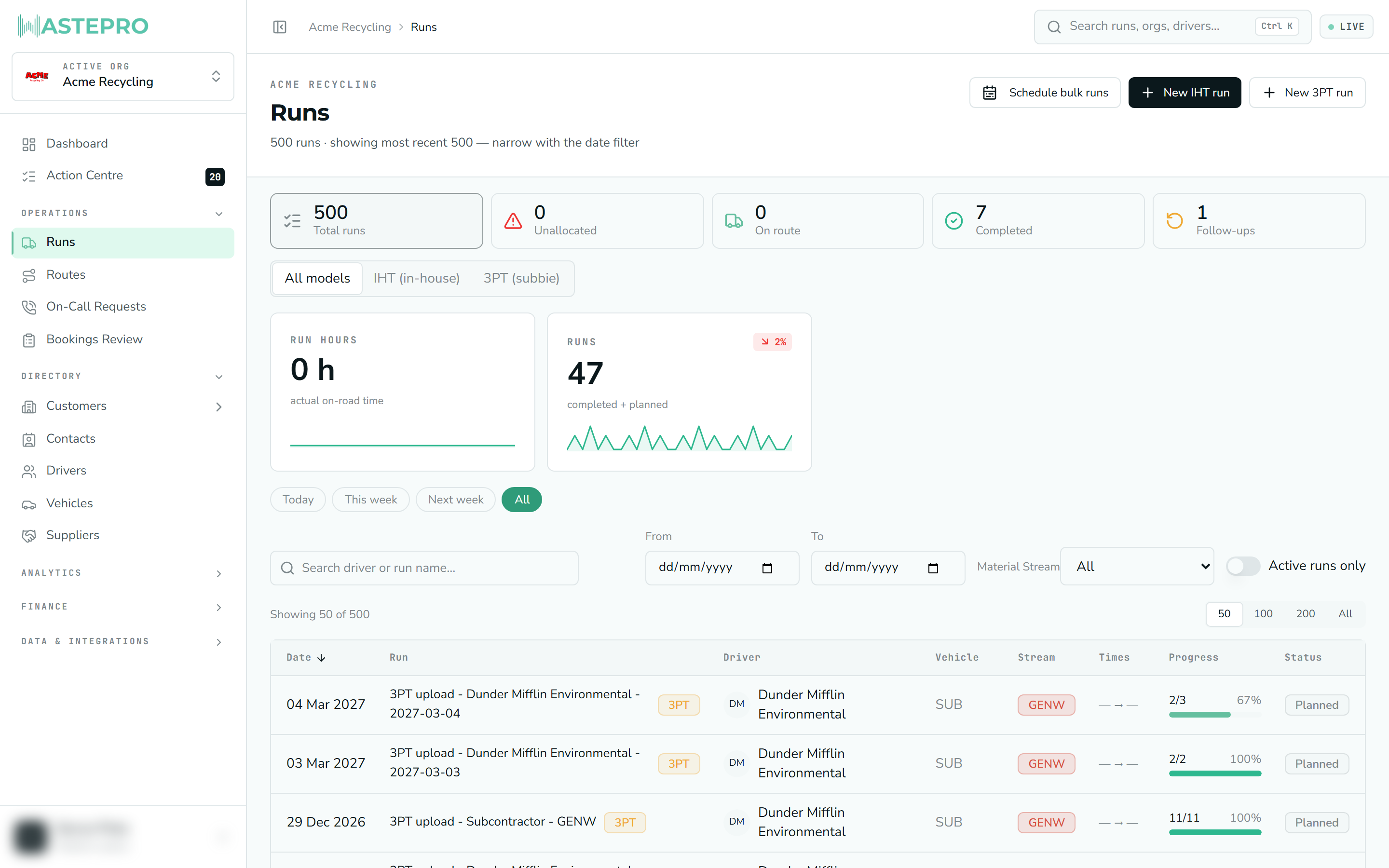
What the Runs list shows
Along the top is a row of summary cards that double as filters. Click any card to narrow the list to just those runs:
| Card | What it counts |
|---|---|
| Total runs | Every run in the current view |
| Unallocated | Runs with no driver or vehicle assigned yet |
| On route | Runs the driver has started but not finished |
| Completed | Runs that have been finished off |
| Follow-ups | Runs carrying a repeat visit for a collection that couldn’t be completed first time |
Below that, a set of tabs lets you show All models, only IHT (in-house) runs, or only 3PT (subbie) runs. There are also two trend tiles — Run hours (actual on-road time) and Runs — that compare the current period to the one before.
The table itself lists each run with its date, name, driver, vehicle, material stream, actual start and finish times, a progress bar of stops done, and a status of Planned, On route or Completed. WastePro works out the status automatically: a run is Planned until the driver starts it, On route once it’s under way, and Completed when the finish time is in. Click any row to open the run. If a run has no driver or no vehicle, that cell shows a red warning so gaps are easy to spot.
The list shows the most recent 500 runs. If you’re looking for older ones, use the date filter in the toolbar to narrow the range.
Creating a run
There are two buttons for new runs, and the difference is simply who does the collection:
New IHT run — your own crew
IHT means in-house transport: one of your own drivers and a company vehicle. Set the run date, pick the material stream, choose the driver (an employee) and the vehicle, and optionally add notes for the driver.
New 3PT run — a subcontractor
3PT means third-party transport: another company does the collection for you. It’s the same form, except instead of an employee driver you pick the subcontractor who’ll handle it.
Both forms have an optional Seed stops from route field. If you pick a route, that route’s active services are dropped onto the run as its stops, so you don’t have to add them one by one. Leave it blank to start with an empty run. If you don’t type a run name, it defaults to “Run” plus the date.
To create many runs at once — for example a whole month of a recurring route — use Schedule runs on the route itself rather than adding them here one at a time. See Routes.
Inside a run
Opening a run shows everything about that day’s trip:
- Summary tiles — number of stops, completion percentage, futile count and run hours.
- Run allocation — the date, material stream, driver, vehicle and notes to the driver. Click Unlock editing to change any of these. (You’ll only see the edit controls if you have permission; otherwise the run is read-only.)
- Run times — planned start and finish times, which you can edit, alongside the actual start and finish, which are recorded in the field and can’t be edited here. Each actual time shows how far it ran early or late against the plan. There’s a matching pair of payroll planned and actual times as well.
- Stops — the ordered list of collections on the run: stop number, customer and site, address, container, and status. A stop that couldn’t be completed is tagged Futile, and a repeat visit is tagged Follow-up.
Every run keeps a full history — open Run history from the top of the screen to see who changed what and when. If you delete a run, its bookings go back into the unallocated pool rather than being lost, but the deletion itself can’t be undone.
Missing an actual start or finish time? You can’t type it in here, but you can in the Action Centre — its Runs missing times lane opens a grid where run and payroll times can be entered for many runs at once. That’s the intended place to fix them, and it matters: run hours drive the per-hour figures on Driver Productivity and feed payroll.
The planned-vs-actual route map only appears once a run has located stops and mapping is switched on for your account. If you don’t see a map, that’s why — the rest of the run detail works regardless.
Next: once collections are done, Bookings Review is where you check every job before it’s invoiced.