Drivers & Vehicles
These two screens are your fleet directory — the people who do your collections and the trucks they drive. They’re grouped together here because they work as a pair: runs are assigned to a driver and a vehicle.
If your account is set up as a broker (you only ever subcontract collections out), the Drivers and Vehicles screens won’t appear in your menu — brokers have no in-house fleet, so these don’t apply. That’s expected, not a fault.
Drivers
Drivers are your operators — the people (or, for a subcontractor, the operator record) who carry out collections. WastePro recognises a few driver types:
- Employee — your own staff.
- Subcontractor — an external operator who works on your behalf.
- Unspecified — a driver whose type hasn’t been set.
Subcontractors are kept off the Drivers list — they have their own dedicated screen with spend and rate tracking. See Suppliers. The Drivers list is your own operators.
The drivers list
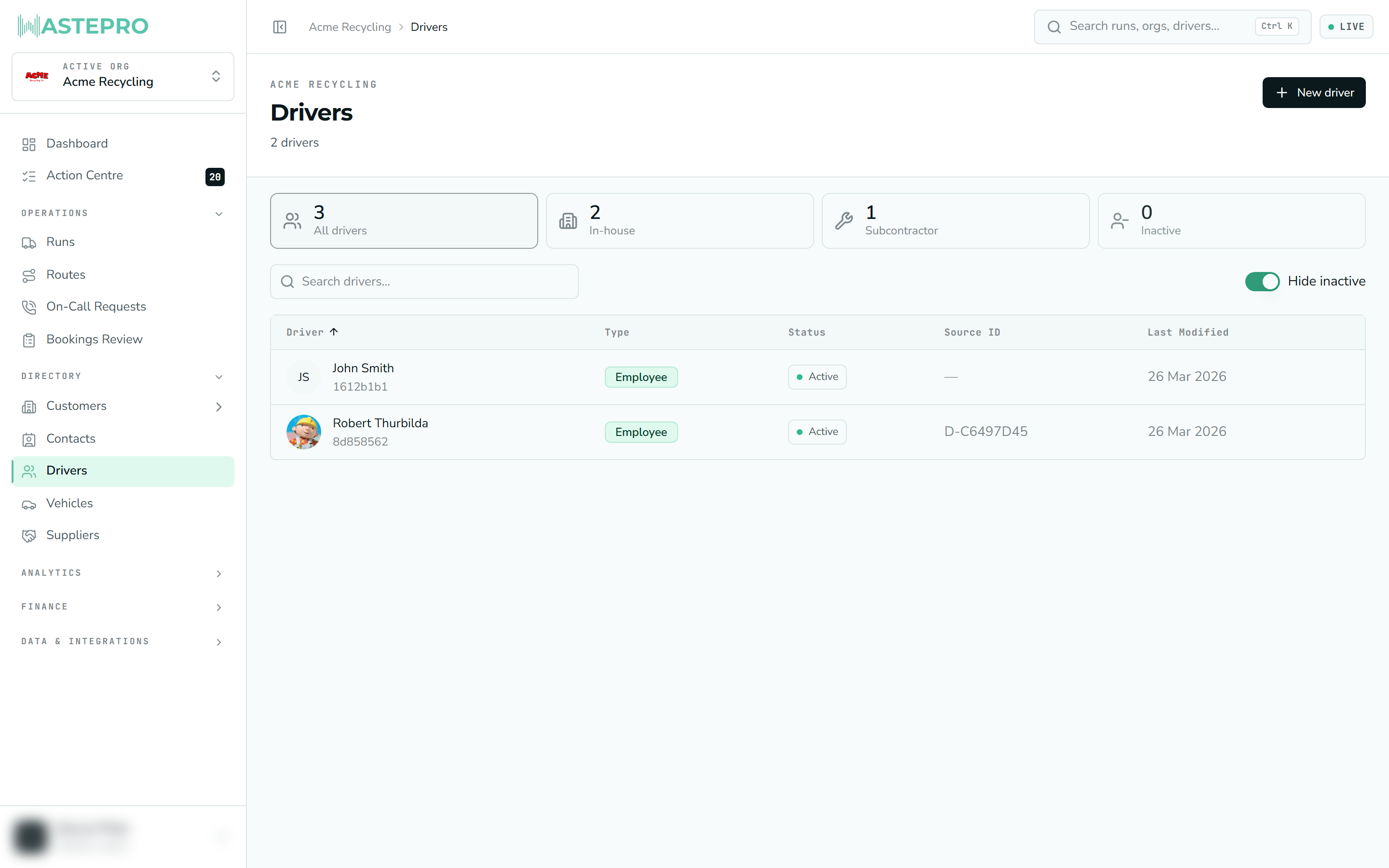
Summary tiles across the top count your drivers by status (all, active, inactive) and type. Below them, a search box and a sortable table list each driver with:
| Column | What it shows |
|---|---|
| Driver | Name and a photo (or initials) |
| Type | Employee, Subcontractor or Unspecified |
| Status | Active or Inactive |
| Source ID | The driver’s reference from an imported system |
| Last Modified | When the record last changed |
By default inactive drivers are hidden. Click any row to open that driver’s detail. To add one, select New driver, enter their full name, pick a type and status, and save.
The driver detail screen
Opening a driver shows three areas:
- Details — the driver’s type, internal IDs, and when the record was created and last changed.
- Services & rates — buy and sell rates for the work this driver does, grouped by contract (customer and site). You can set a rate once for a site and then override individual lines, and switch between the buy and sell side with a toggle. This section only appears when the driver has rates set up.
- Monthly Activity — a read-only month-by-month summary of the driver’s jobs, quantity, volume and weight.
A history button records changes to the driver over time, and — if you have the right permission — an Edit driver button lets you update the name, type and status.
Vehicles
Vehicles are your fleet — the trucks that run your collections. Registering a vehicle here lets you assign it to runs and drivers.
The vehicles list
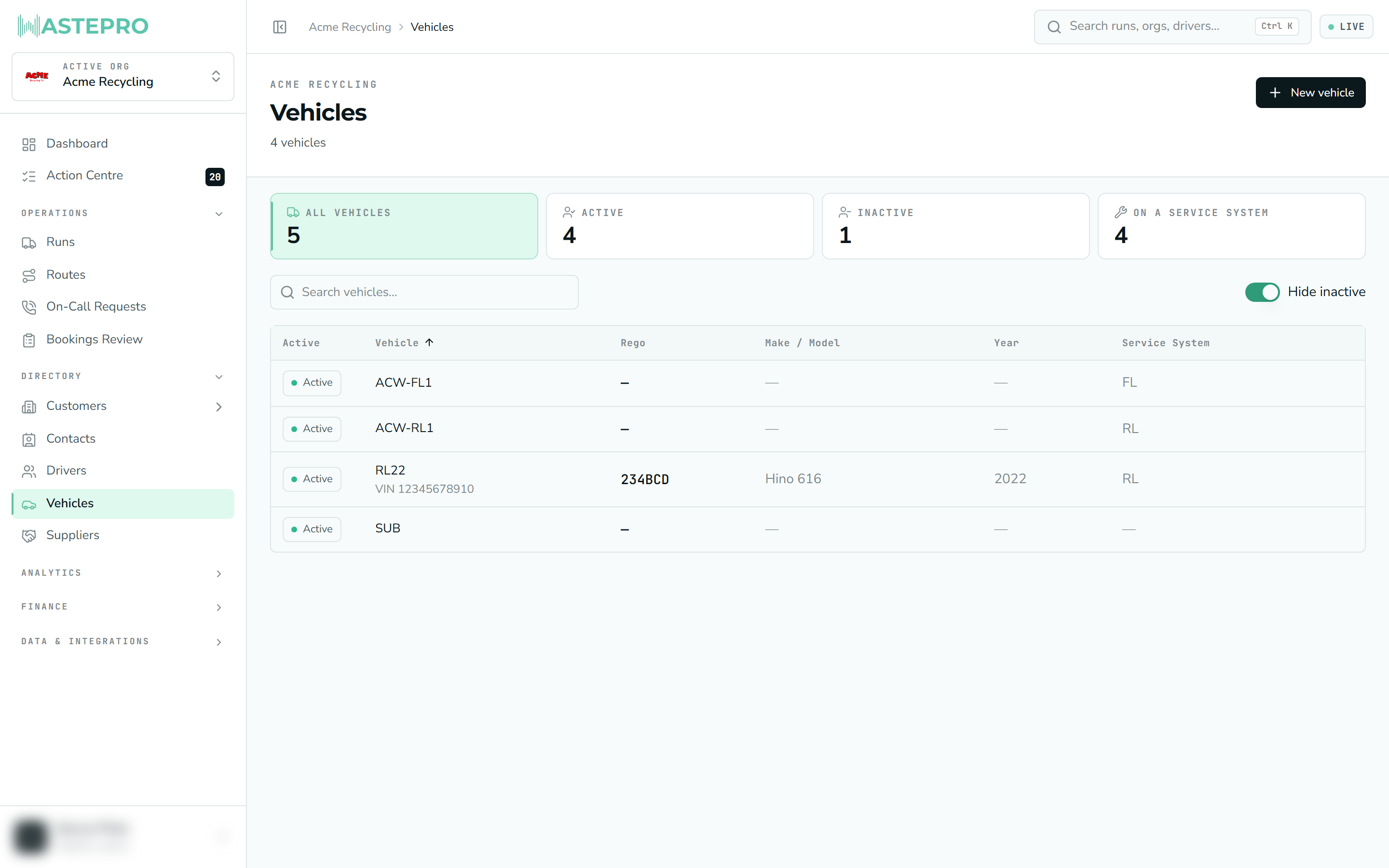
As with drivers, summary tiles count your vehicles by status, plus how many are on a service system. The table lists each vehicle with:
| Column | What it shows |
|---|---|
| Active | Whether the vehicle is in use |
| Vehicle | Display name (with VIN underneath, if recorded) |
| Rego | Registration number |
| Make / Model | The vehicle’s make and model |
| Year | Year of manufacture |
| Service System | The collection system it runs (e.g. rear loader) |
Search, sort and click through work the same way. To add one, select New vehicle, enter at least a registration, and fill in make, model and type as you have them.
The vehicle detail screen
Opening a vehicle shows:
- Details — registration, make and model, year, VIN, and service system.
- Record — the source ID it was imported with, plus created and modified dates.
- Recent Runs — the latest runs this vehicle was on, each showing its status, driver, material stream and booking count. Click a run to open it.
Like drivers, vehicles have a history button, and an Edit vehicle button for users with the right permission — covering registration, make/model, VIN, service system and status.
Next: once your fleet is in, see how their day’s work comes together on Runs.