Customers, Sites & Services
These three screens hold the records everything else in WastePro is built on — who you bill, where you collect, and what you collect there. They sit together in the menu because they’re really one connected chain, so this page explains the chain first, then walks each screen.
How they fit together
The single most useful thing to understand in WastePro is how these three link up:
A customer is who you bill
A customer is the account you invoice — a business, a franchise, a body corporate. It carries the billing details: ABN, billing address, payment terms, primary contact.
A customer has one or more sites
A site is a physical place you collect from — a shop, a depot, a building. One customer can have many sites (think of a retail chain with a site per store), and every site belongs to exactly one customer.
A site has one or more services
A service is a single recurring collection at a site — for example “2 × 1100L general waste bins, collected every Tuesday, at $45 per lift”. A busy site might have several services running side by side: general waste, cardboard, and organics, each on its own schedule and its own rate.
Services carry the schedule and the rate
The service is where the detail lives: which waste stream, which container and how many, how often it’s collected, which days, and what it’s charged (and what it costs you). When a collection falls due, the service is what generates the actual job your driver does.
So the shape is one customer → many sites → many services. Read it the other way and every service points up to exactly one site, and every site up to exactly one customer.
You’ll see this hierarchy drawn out on the customer and site detail screens, where you can expand a customer to see its sites, and a site to see its services.
Customers
The Customers screen lists every customer in your active organisation. Across the top are quick counts — all customers, active, inactive, total sites — plus an In arrears count if any customer has overdue invoices in Xero.
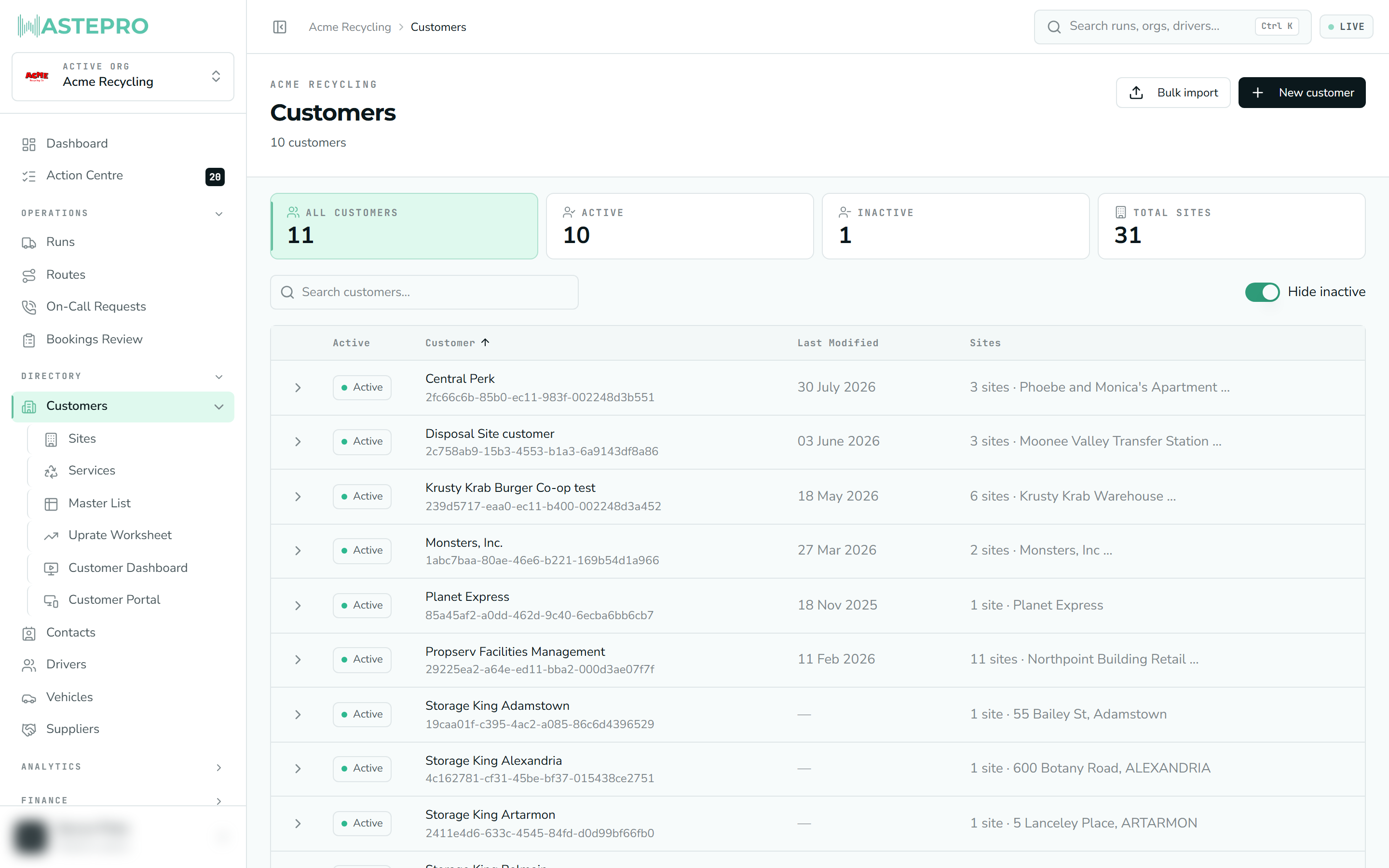
Each row shows the customer’s active status, name, when it was last modified, and how many sites it has. Click the arrow on the left to expand a customer and jump straight to one of its sites, or click the row itself to open the customer.
- Search by name using the box above the table.
- Sort by clicking a column heading (active, name, last modified, or site count).
- The header buttons let you add a customer, import customers in bulk, and — if your account is connected to Xero — sync new customers to Xero or reconcile against it.
The arrears and Xero-sync badges only appear when your organisation is connected to Xero. If you don’t use that connection, you simply won’t see them.
Opening a customer
The customer detail screen gathers everything about that account in one place:
- A revenue summary for recent activity, and a subcontracted-margin card where relevant.
- A Details card — customer ID, ABN, billing group, reference, payment terms, billing address.
- A Site hierarchy — every site under the customer, each expandable to show its services. You can add a new site straight from here.
- What we invoice — switches deciding which charge types reach this customer’s invoices at all. See Billing rules.
- Edit customer to change the name, ABN, payment terms, billing address, primary contact, and active or service-stop status, plus a history drawer that records what changed and when.
Sites
The Sites screen lists every site across all your customers, with counts for total sites, active sites, total services, and how many customers they span. Search covers site names, customer names, and addresses.
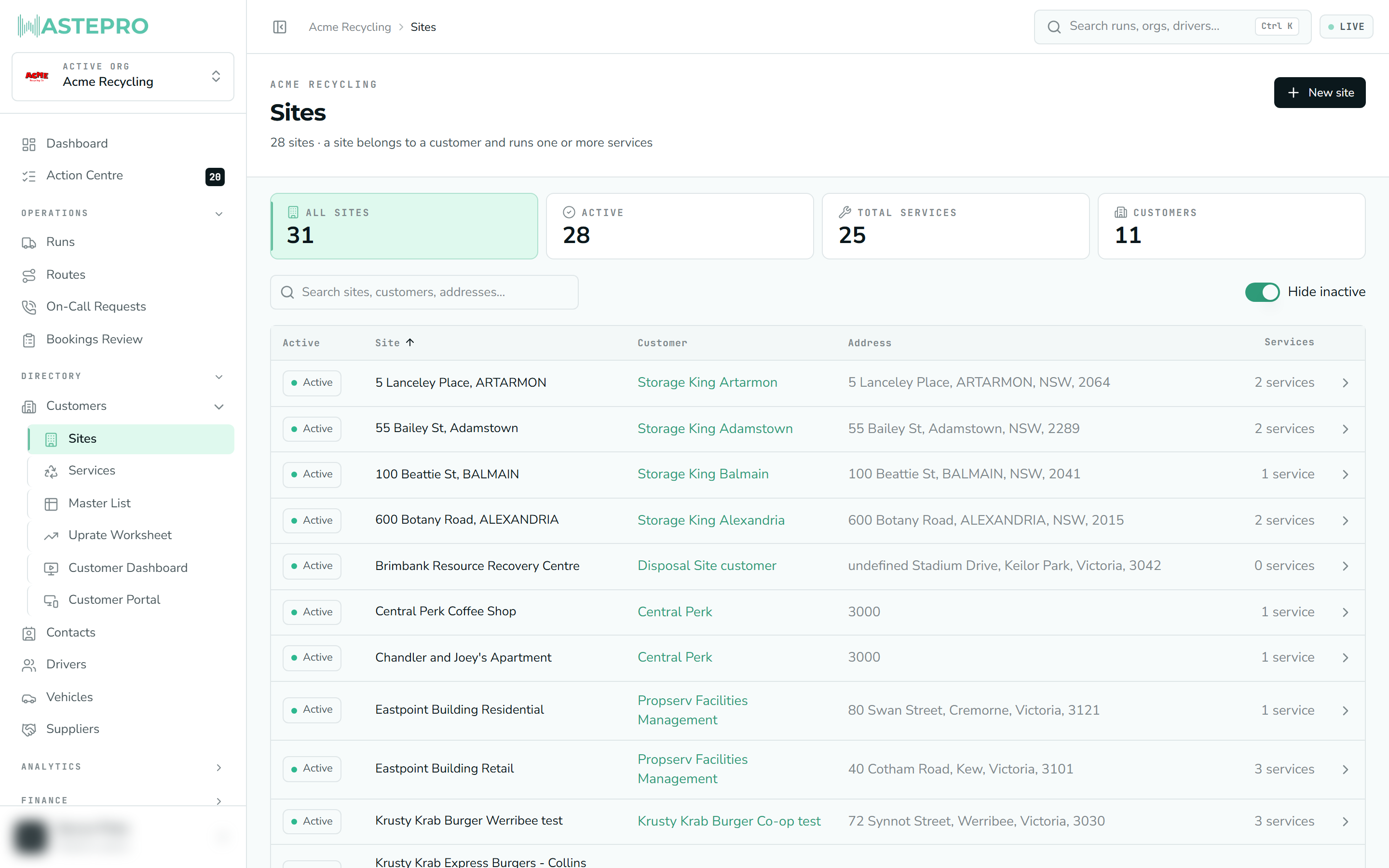
Use New site to add one — you pick the customer it belongs to, type or select an address (choosing a suggestion also drops a map pin), and can record a collection-day contact who may differ from the billing contact.
Opening a site
The site detail screen shows:
- A status panel at the top showing four switches together: Site active, Site on stop, Customer active and Customer on stop. Seeing the customer’s state next to the site’s is what explains a site that looks fine but isn’t generating jobs.
- The site’s address, customer, contacts, and any hazard notes (called out prominently for driver safety), plus a map when the address has coordinates.
- Current services at the site — each with its container, stream, price per lift, rental and schedule. You can add a new service here, or open one to edit its rates.
- Booking history — recent collections at this site, with the material stream and job type code for each. Use the date control to change the window.
- What we invoice — the site’s own billing rules, which start from its customer’s and depart only where you change them. See Billing rules.
- A printable Service schedule (a 12-month collection calendar) and an Edit site form for details, contacts, hazard notes and service-stop status.
Putting a customer or site on service stop signals that collections should pause — usually for non-payment. It’s separate from marking a record inactive, so check both when a site unexpectedly stops (or keeps) generating jobs.
Switching a record off takes its children with it
Deactivating a customer or a site doesn’t leave orphans behind. WastePro asks first, showing you exactly how many records will be switched off with it — a customer’s sites and their services, or a site’s services — with each one ticked. Untick anything you want to leave active.
Turning one back on works the same way in reverse: you’re shown its switched-off children with a tick already against the ones that went off together with it, so restoring a record restores what it took down and nothing more.
This is why a site can look active while none of its services are, or the reverse. If jobs aren’t generating, walk the chain: customer active → site active → service active → neither on service stop.
Services
The Services screen is the flat list of every service in your organisation, regardless of which site or customer it sits under. Counts show all services, active services, and the number of sites and customers involved. Search by waste stream, site, or customer.
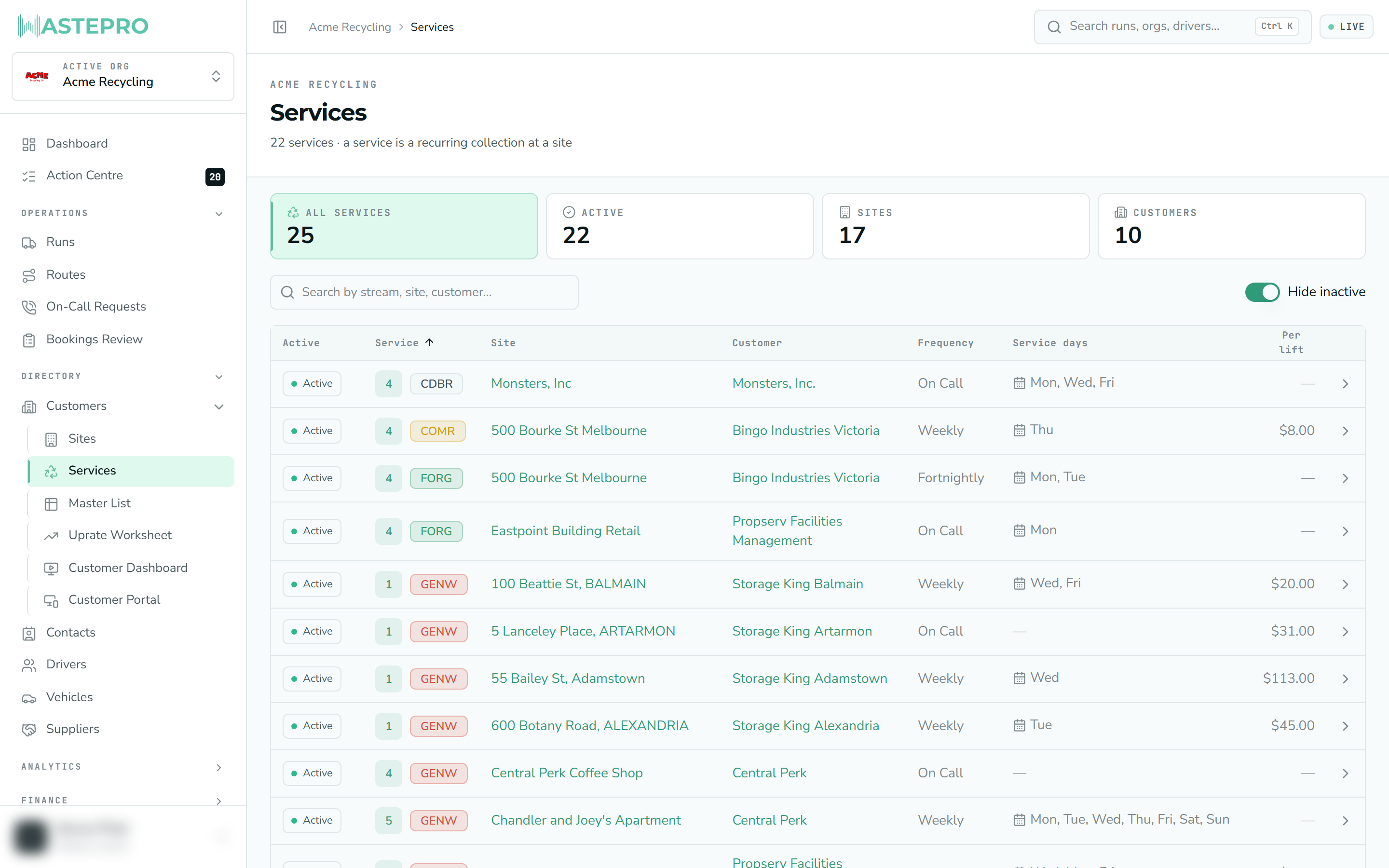
Each row shows the quantity and waste stream, the site and customer (both clickable), the collection frequency, the service days, and the price per lift. Click a row to open it.
Opening a service
The service detail screen is where a collection’s setup and pricing live:
- A summary line — container and quantity, waste stream, price per lift, monthly rental, service days and frequency.
- Service pricing — the buy and sell rates, editable if you have rate permission, with a rate change history below.
- All unit prices and additional charges tables.
- Contract & contact — service start and end, contract expiry, the service contact, and any notes.
Editing rates needs a specific permission, separate from editing the rest of a service. If the pricing looks read-only to you, that’s expected — ask an administrator for rate access. Rates & pricing explains what each rate row means and everywhere you can open one.
Next: to edit many services at once instead of one at a time, see the Master List — every service across every site on one spreadsheet-style grid.