Contacts
Contacts are the people you deal with — a site manager, an accounts payable clerk, a maintenance lead. Each contact is a person record that can stand on its own or be linked to one of your customers, so you always know who to call about what.
What a contact is
A contact holds a person’s name, their role or title, and their contact details (email, mobile and phone). Linking a contact to a customer is optional but useful: once linked, the person shows up against that customer account, and from the contact you can jump straight to the customer they belong to.
A contact is a person, not a login. Adding someone here does not give them access to WastePro. Team access is handled separately on Users & roles.
The contacts list
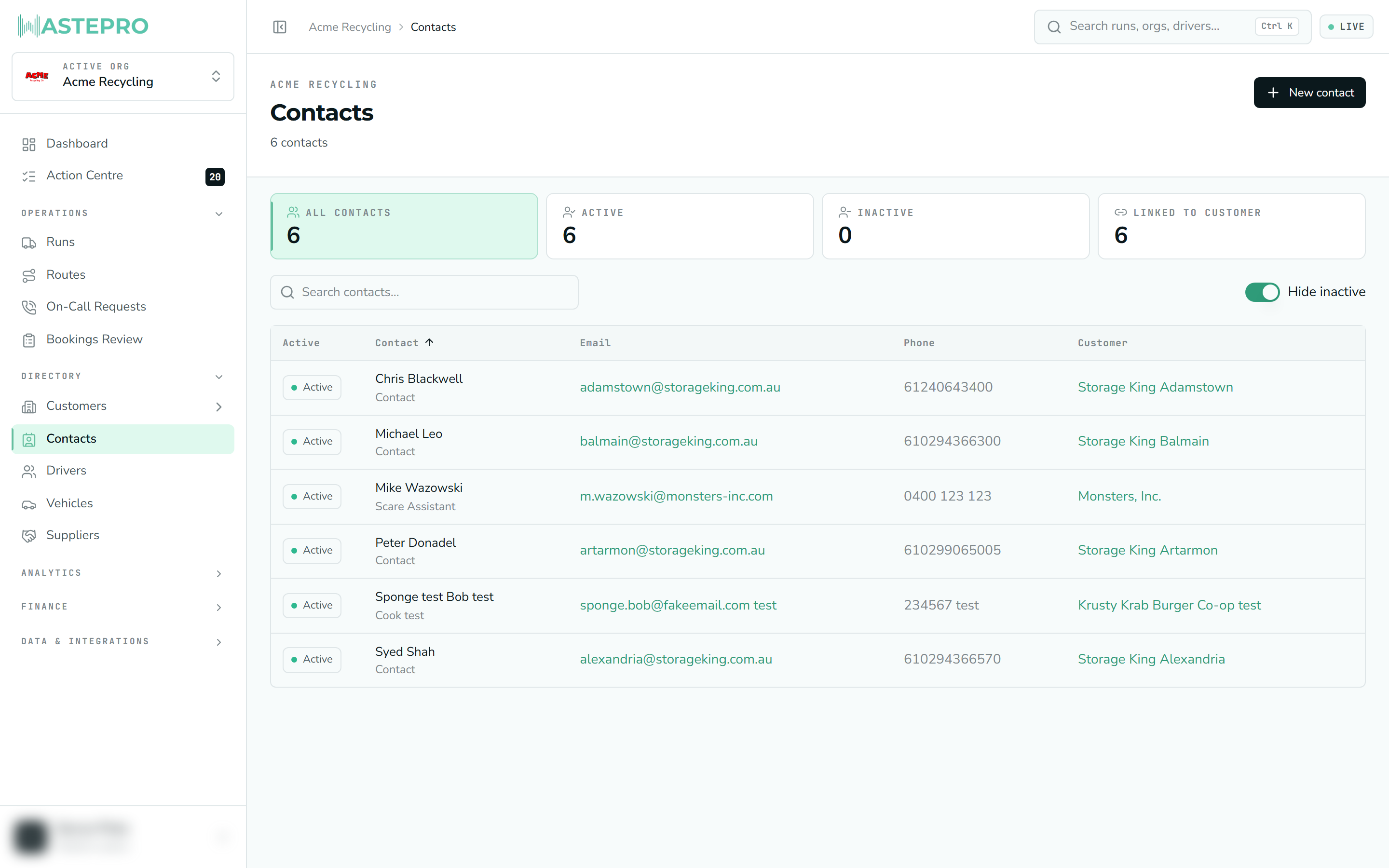
The main screen lists everyone you’ve recorded. Along the top, four summary tiles give you the shape of the list at a glance:
| Tile | What it counts |
|---|---|
| All contacts | Every contact in your organisation |
| Active | Contacts still in use |
| Inactive | Contacts you’ve retired |
| Linked to customer | Contacts attached to a customer account |
Below the tiles is a search box and the table itself. You can search by name, sort any column, and click a row to open that person’s detail. By default the list hides inactive contacts; the tiles let you switch to viewing active, inactive, or all.
The table shows each contact’s status, their name (with role underneath), email, phone, and the customer they’re linked to. Email addresses are clickable — selecting one opens a new email — and the customer name links through to that customer’s page.
Adding a contact
Open the new-contact form
Select New contact at the top right. A panel slides in from the side.
Fill in the person’s details
Enter their first and last name, and optionally their email, phone and a role or title (for example “Primary”, “Billing” or “Site manager”).
Link them to a customer (optional)
Pick a customer from the list if this person belongs to one, or leave it as — No customer —.
Save
Choose Create contact and the person is added to your list.
The contact detail screen
Clicking a contact opens their record. It’s laid out in two simple panels:
- Contact — email, mobile, phone and the linked customer. Email and phone numbers are clickable so you can reach out in one tap.
- Record — when the contact was created and last changed.
The detail screen is currently read-only — you can view a contact’s details but not edit them here yet. You can still create new contacts from the list.
Next: contacts often sit alongside the accounts they serve — see Customers, sites & services for how those records fit together.