Bookings Review
Bookings Review is the quality-check screen you work through before invoicing. It puts every job on one big editable grid — like a spreadsheet — so you can scan a month’s collections, spot anything wrong, and fix it in place. Getting jobs right here is what makes the invoices that follow correct.
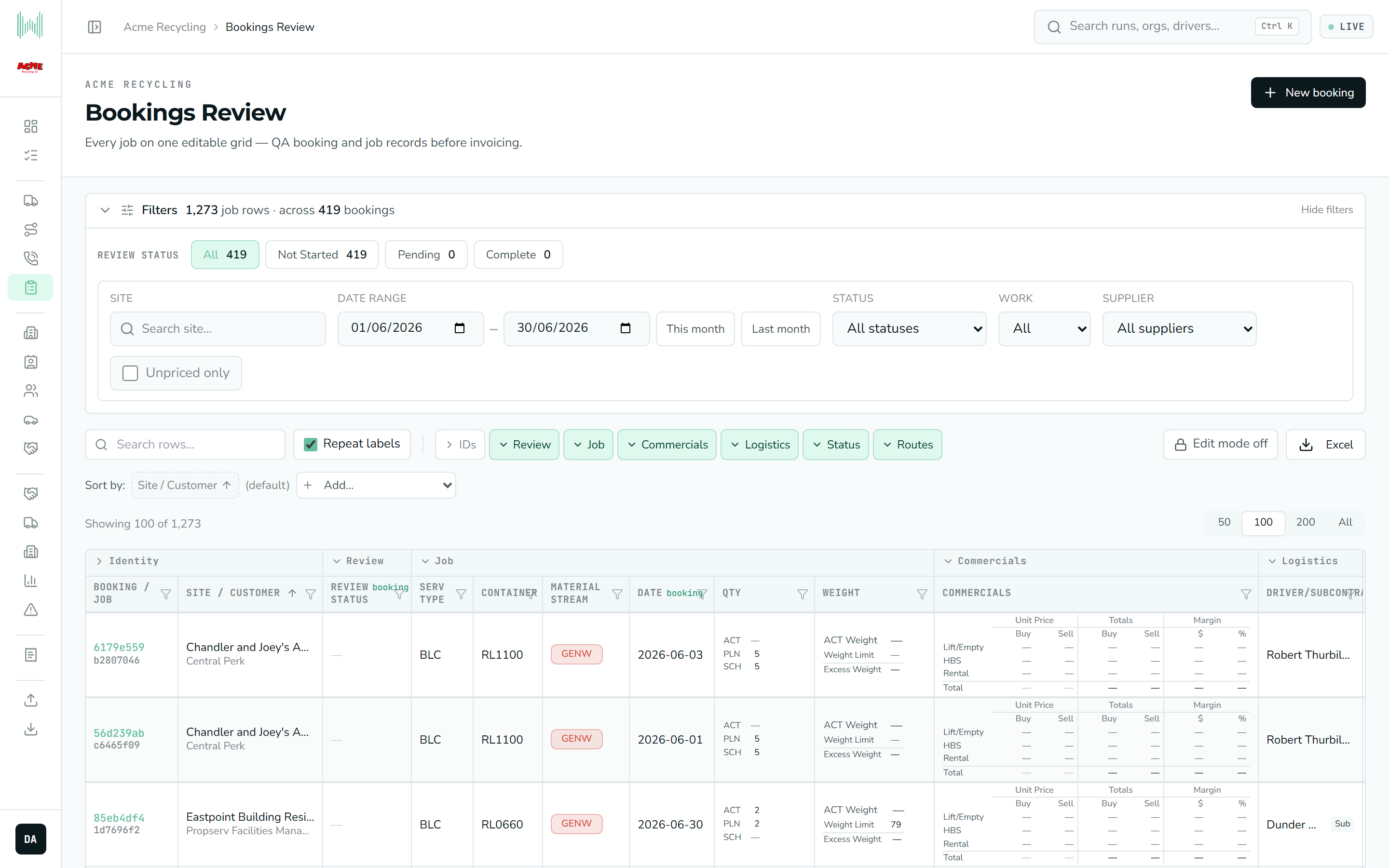
One row per job
The grid shows one row per job. Because a single booking can contain several jobs, the header tells you how many job rows you’re looking at and how many bookings they span. By default it shows the last complete calendar month — so early in July, you’re reviewing June.
Each row starts with two pinned columns on the left that stay put as you scroll sideways: Booking / Job (the booking reference on top, the job reference below, both linking to the booking) and Site / Customer.
Finding the jobs you need
The Filters panel above the grid can be collapsed to free up space; when collapsed it shows a summary of whatever’s currently narrowing the list. Inside it you have:
- Review status chips — All, Not Started, Pending and Complete, each with a live count. This is the heart of the QA workflow: work the queue down from Not Started to Complete.
- Site search, a Date range with quick This month / Last month buttons, a booking Status filter, a Work filter (all, IHT or 3PT), a Supplier filter for subcontracted work, and an Unpriced only toggle to surface jobs missing a price.
The grid has its own controls too: a Search rows box, per-column sorting (click a heading; add more columns to sort by several at once), and a per-column filter (the funnel icon on each heading) where you tick the exact values you want to keep.
The grid loads up to 10,000 rows at a time. If a banner tells you it’s capped, narrow the date range to reach older ones.
The columns
Columns are grouped into sections you can show or hide with the toggle buttons. The main ones:
| Section | Columns | What they’re for |
|---|---|---|
| Identity | Booking / Job, Site / Customer | Which job this is, and where. The IDs toggle reveals the full reference codes. |
| Review | Review Status | The QA state of the booking — the field you set as you work through the queue. |
| Job | Serv Type, Container, Material Stream, Date, Qty, Weight | What was collected, in what, of which waste stream, when, how many, and how heavy. |
| Commercials | Commercials | The buy-vs-sell breakdown and margin for the job (read-only — see below). |
| Logistics | Driver / Subcontractor | Who did the collection. Read-only here — it’s set on the run. |
| Status | Booking Status, Futile reason, Is Futile | The booking’s state and whether the collection failed. |
| Routes | Route Directions, Route(s) | Access notes for the site, and which routes the job sits on. |
A few columns hold a small nested table rather than a single value:
- Qty breaks down into ACT (actually collected), PLN (planned) and SCH (scheduled) quantities.
- Weight shows the actual weight, and for weight-limited jobs also the weight limit and any excess weight over it.
- Commercials lays out each charge line (Lift/Empty, HBS, Rental) with its unit Buy and Sell price, the totals, and the margin in dollars and per cent, with a Total row underneath. A negative margin is shown in red so loss-making jobs stand out.
Checking and correcting jobs
To change anything, first turn on Edit mode with the button on the grid toolbar. (If you don’t have edit permission, or writes are switched off for your environment, the grid stays read-only and the button won’t appear.) With editing on:
- Click a dropdown-style cell (like Review Status or Material Stream) to choose a value.
- Double-click, or press Enter or F2, on a text or number cell to edit it; or just start typing. Use the arrow keys and Tab to move around like a spreadsheet.
- Edit the ACT weight and the quantity lines directly in their nested cells. The commercials recalculate live as you type.
Some edits deliberately fan out to related rows, and the column heading tells you the scope with a small tag:
| Scope tag | An edit applies to… |
|---|---|
| booking | every job row of the same booking (e.g. Review Status, Date, Booking Status) |
| site | every row for that site (e.g. Route Directions) |
| service | every row for that service (e.g. the scheduled quantity) |
A booking-scope change, such as setting Review Status to Complete, updates all of that booking’s job rows at once — that’s intended, not a glitch.
Saving your changes
Nothing is saved as you type. Instead, edited rows are highlighted, and a save bar appears at the bottom counting your unsaved changes. Review them, then click Save changes to write them all in one go. You can Discard everything, or undo a single row with the small undo icon on it. This batched approach lets you work through a whole screen of corrections and commit them together.
Prices and the service rate modal
The Commercials column is read-only because prices come from the service’s rate card, not the individual job. In edit mode, the unit-price figures (and the weight limit) become clickable — clicking one opens the Edit service panel, where you can adjust the buy and sell rates, the weight limit, and whether the service is IHT or subcontracted.
The rate panel edits the service’s master settings. Changing a rate there applies to every booking linked to that service, not just the row you clicked from. The panel shows a warning and the service’s reference so you know what you’re changing. See Rates & pricing for what each rate row means — the units differ, and they matter.
Futile jobs
A collection that couldn’t be completed — a blocked bin, a locked gate — is a futile. You record it by choosing a Futile reason on the row; doing so automatically flips the read-only Is Futile column to Yes. Clearing the reason sets it back to No. Recording futiles here keeps the billing and the follow-up picture accurate.
Exporting
The Excel button downloads everything currently in view as a spreadsheet, one row per job with the nested Qty, Weight and Commercials figures spread out into their own columns. The export reflects your current filters and any unsaved edits, so it’s a handy way to hand a slice of the review to someone else.
Prefer to see everything on one booking together? Turn Repeat labels off to blank out repeated booking-level values on consecutive rows, like merged cells in a spreadsheet.
Next: once jobs are reviewed and correct, they flow through to Xero Invoice Export, which turns them into the file you import into Xero.