Uprate Worksheet
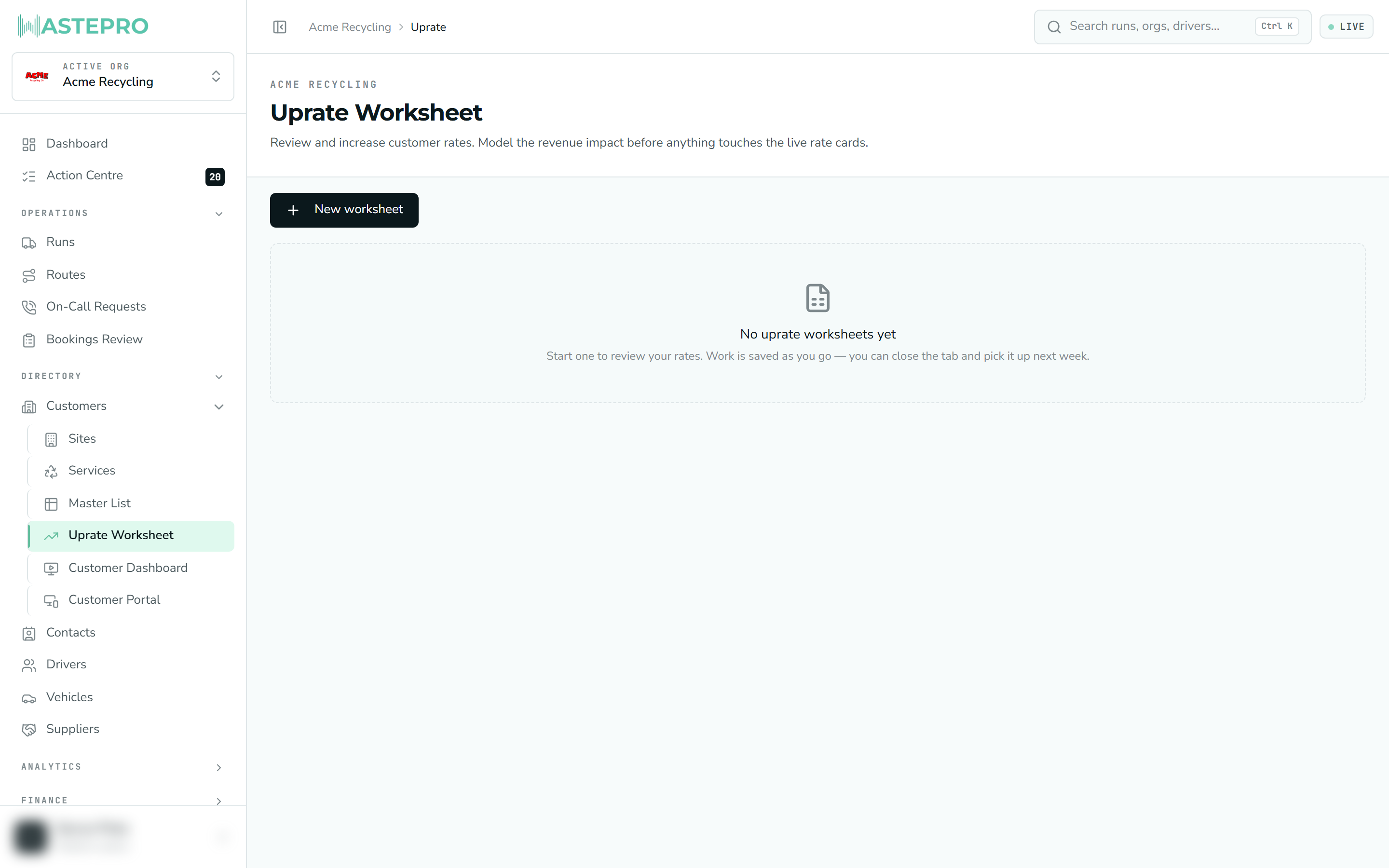
An uprate is a rate increase — putting your prices up. The Uprate Worksheet is where you review your current rates, model an increase, and see the revenue impact before anything touches your live pricing. Nothing you do here changes a real rate until you deliberately apply it.
The idea: model first, apply later
Working out an uprate takes time — you might start on Friday and finish on Monday. So the screen is built around saved worksheets rather than a one-shot form. A worksheet is a working copy of your rates that you can edit, close, and come back to, all without affecting what customers are actually billed.
You propose new rates line by line (or in bulk), the worksheet shows what that does to revenue, and only when you’re satisfied do you apply it — the single step that writes the new rates onto the live records.
Creating and changing worksheets needs rate-edit permission. Without it you can still open existing worksheets to look, but you can’t create or change them.
The worksheets list
The Uprate Worksheet screen opens on your list of worksheets, so you can pick up where you left off or start fresh. Each row shows its name, the base period it’s modelled on, how many lines have been changed, its status (Draft or Applied), and when it was last edited.
To start one, click New worksheet, give it a name, and choose a base period — the month whose volumes and revenue the impact is modelled against.
The base period only sets which month’s numbers the model uses. It doesn’t limit which customers you can uprate — every active service line is loaded into the worksheet either way.
Inside a worksheet
Opening a worksheet shows every active service line in a spreadsheet-style grid: the customer, site and stream, the current rates, and empty cells for the rates you propose. As you enter proposed rates, the grid works out the new revenue and shows the difference.
Alongside the rates, a Service/Volume Context section gives you the evidence for the decision — what actually happened at that line during the base period:
| Column | What it tells you |
|---|---|
| Lifts, m³, Weight (kg), Jobs | The activity behind the revenue figure. |
| Density (kg/m³) | How heavy this site’s waste is per cubic metre. |
| Excess kg / Proposed excess kg | Kilograms over the included weight allowance, at today’s allowance and at the one you’re proposing. Tightening an allowance moves revenue without touching a rate. |
| Delivery Model (Base Period) | Whether the work was actually done 3PT or IHT in the period — read from the subcontractor invoice feed, not from how the line is set up today. |
| Subcontractor (Base Period) | Which supplier actually carried it, and whether more than one did. |
A part tag on either of those last two means the line was only subcontracted for part of the base period. Worth a look before you uprate it — a line that changed hands mid-period has a revenue history that isn’t representative of either arrangement.
Each row also has a small Edit button that opens the line in a full-height popup, so you can enter proposed rates down a column instead of scrolling across the grid.
Enter proposed rates
Type a new rate straight into a cell. Re-typing the rate that’s already in force isn’t counted as a change, so only real movements are tracked. A running impact summary shows current revenue, proposed revenue, and the difference in dollars and percentage.
Or lift many lines at once
The Bulk uplift tool raises every line currently in view by a percentage — you choose whether it applies to sell rates, buy rates, or both, and how to round the result (exact, to the nearest cent, 5c, 10c, or dollar). Filter the grid first to target a subset, then uplift just those.
Or work in Excel and bring it back
Export downloads the worksheet as a formatted Excel file, with the proposed cells shaded and the revenue split into live formulas. Edit it there, then drop the file back onto the worksheet — you review the detected changes before anything is applied.
Your work saves as you go
Edits save automatically as a draft — you can close the tab and return next week. A backup is also kept in your browser to cover the brief moment between typing and the save landing.
Because a worksheet re-reads live service lines and volumes every time you open it, a draft left open for days always reflects the current book. If a rate you’d proposed against was changed elsewhere in the meantime, the grid flags the drift rather than quietly overwriting that other change.
Applying the worksheet
When the numbers look right, Submit to live records applies the worksheet. This is the step that changes real pricing, so it asks you to confirm first, spelling out exactly what will be written — how many rate changes, and any services, sites or customers being turned active or inactive.
Applying is the point of no return: the proposed rates become your live rates, and the worksheet is marked Applied. Any lines that were changed by someone else since you started are skipped rather than overwritten, and the confirmation tells you what actually landed. Review the confirmation before you commit.
Next: to check or fine-tune the rates on a single service after an uprate, open it from Customers, Sites & Services.