Action Centre
The Action Centre is a prioritised to-do list of data problems that would stop a collection being billed or reported correctly. Work through it regularly — ideally before each billing run — and everything downstream flows more cleanly.
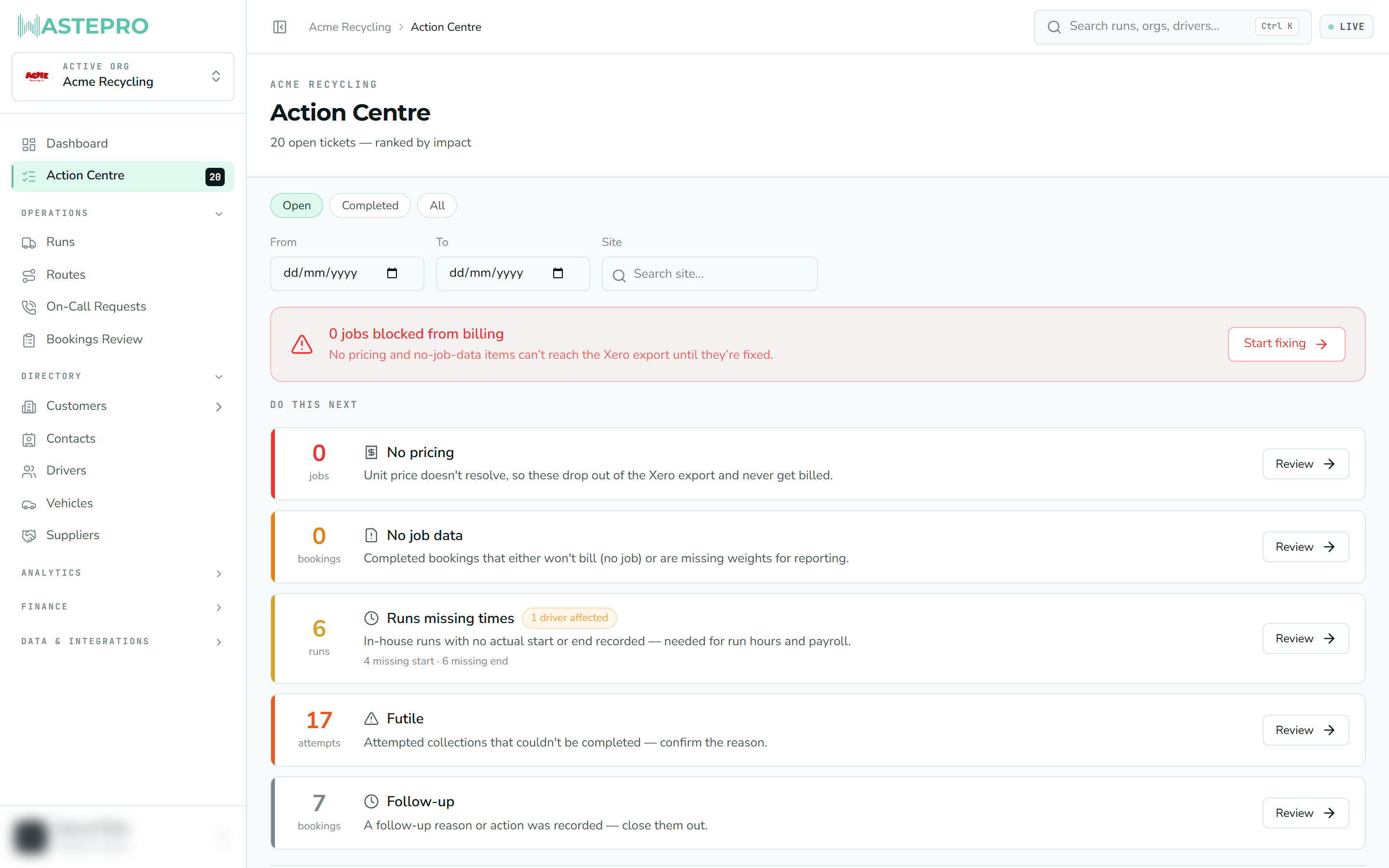
The idea: fix the data, and the item disappears
Every item here is an exception — something WastePro noticed that needs a human to sort out, like a completed job with no price or a run with no finish time. The counts are worked out fresh each time you open the screen, straight from your live data. So there’s nothing to tick off: the moment you fix the underlying record, the item drops off the list and the count falls by one. An empty Action Centre means your data is clean.
The number on the Action Centre item in the left menu is a live count of how many items are waiting. It falls on its own as you clear them, so treat it as a running “how much is left to do” figure.
How the screen is laid out
The Action Centre opens on a ranked “Do this next” home. At the very top is the one figure that matters most — how many jobs are blocked from billing — because those can’t reach your Xero export until they’re fixed. Below that, the exceptions are grouped into lanes, ordered by impact: money-blocking problems first, operational ones after.
Each lane shows its count, a plain-English description, and a Review button that takes you straight to the screen for fixing that kind of problem.
Choosing the period
Everything on the screen — the home, the ticket list and each bulk grid — sits inside one date window, with This month / Last month / Custom chips beside the From and To boxes.
It opens on this month, deliberately. The finance screens default to last month because they report on a closed period; the Action Centre is a live work queue, so today’s problems have to be visible.
If a job you’re chasing isn’t in the list, check the window before assuming it’s been fixed. An exception from last month is still an exception — it just isn’t in this month’s view.
The lanes
| Lane | What it means | Why it matters |
|---|---|---|
| No pricing | Completed jobs whose unit price won’t resolve. | These drop out of the Xero export and never get billed. |
| No job data | Completed in-house bookings that either have no job recorded, or are missing their weights. | No-job items won’t bill; missing weights leave gaps in your reporting. |
| Runs missing times | In-house runs missing an actual run or pay start/end time. | Run times feed run hours and payroll, so gaps distort both. |
| Futile | Attempted collections that couldn’t be completed (for example, a blocked bin). | Confirm the reason so the record is accurate. |
| Follow-up | Bookings someone flagged with a follow-up reason or action. | Close them out once the follow-up is done. |
The three lanes that split further
Three of the lanes tag each item with why it’s there, which usually tells you what to do about it.
No pricing:
| Tag | What happened | What to do |
|---|---|---|
| No rate card | Nothing has ever priced this stream and container at this site. | Add the rate — it’s a new or unpriced service. |
| Rate retired | There was a matching rate, but it’s since been deactivated (the bin was retired or upsized). | The lift most likely billed at the time. Only reactivate the line if the service continues. |
| Job mismatch | A rate card exists for the site, but the job’s stream, container or type doesn’t match it. | Fix the job, not the rate. |
No job data:
| Tag | What happened | What to do |
|---|---|---|
| No job row | The booking has no job attached, so the lift won’t bill. | Create the job. This is the money-blocking half. |
| Missing weights | A job exists and bills per lift, but no actual weight was recorded. | Enter it. This is a diversion and ESG reporting gap, not a billing one. |
Runs missing times splits by which clock is blank — Run + pay (both), Missing run time, or Missing pay time.
Actual run times can be entered here even though they’re read-only on the run’s own page (where they normally arrive from the driver app). If you’ve been trying to fix a missing finish time on the run screen, this is where to do it.
Working through it
Start at the top
Clear the money-blocking lanes first — No pricing and No job data. The red banner at the top counts exactly these, so watch that number come down.
Open a lane
Click Review on a lane. The three bulk lanes — No pricing, No job data and Runs missing times — open an editable grid where you can fix many rows at once. Futile and follow-up items open a resolution panel on the individual booking.
Fix the underlying record
Enter the missing price, weight, run time or reason. When you save, the item leaves the list because it no longer meets the “something’s wrong” test.
Move to the next lane
Use the breadcrumb at the top to step back to the home, and carry on down the list.
Prefer one long list? View all tickets in one list (bottom of the home) shows every open item together, tagged by type. The Open / Completed / All filter lets you look back at what’s already been dealt with.
Fixing records here changes real data, so some actions need the right permission. If the edit controls are greyed out, your account has view-only access to operational data — see Users & roles.
Next: learn how to log ad-hoc pickups on On-Call Requests.